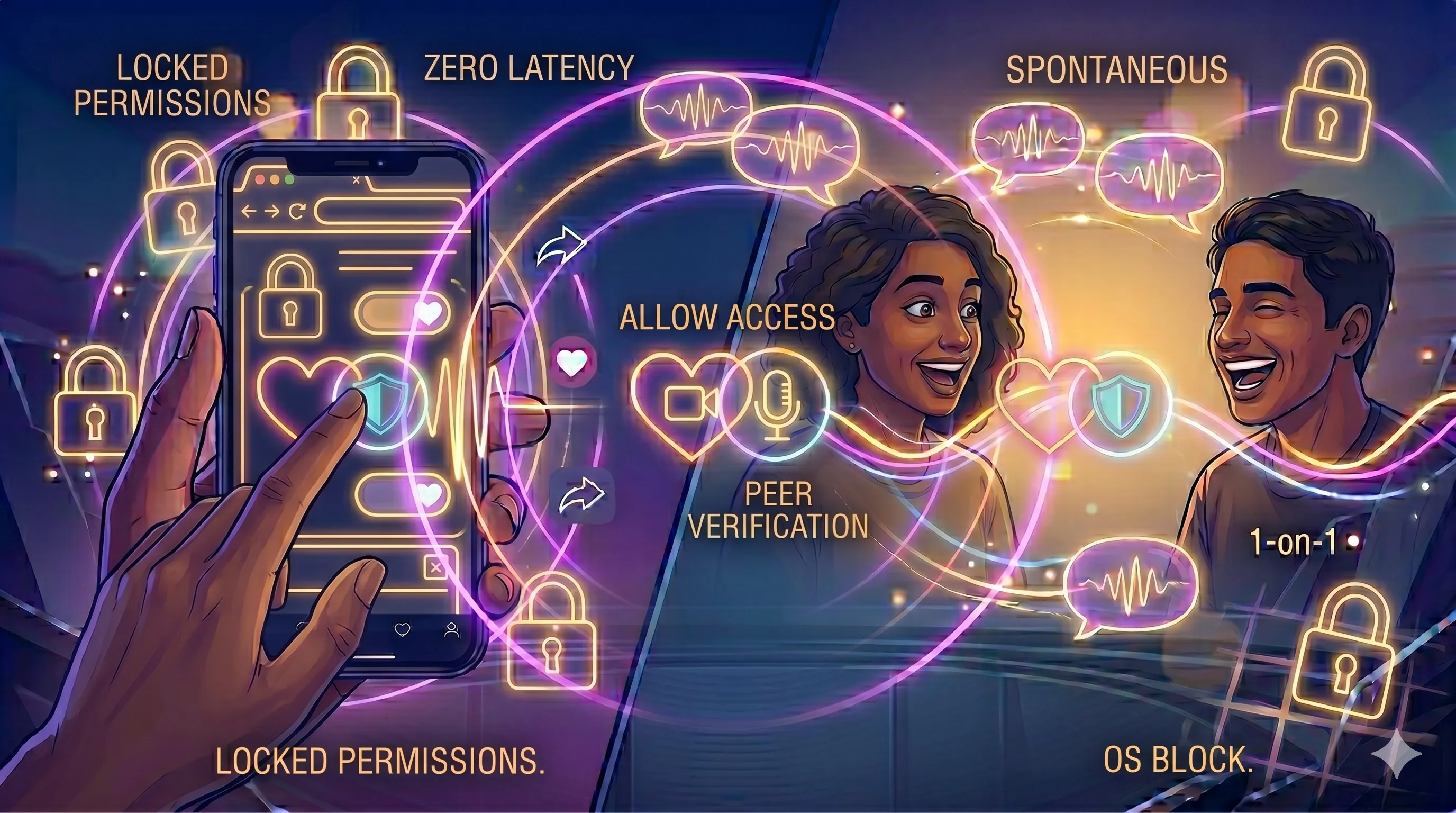
Browser Permission Settings 101: Troubleshooting Cam & Mic Like a Pro
Nothing kills the momentum of a 1-on-1 random video chat faster than a "Camera Not Found" error. In the modern web ecosystem, your browser acts as the critical gatekeeper between your hardware and your global connection. While modern browsers like Chrome, Safari, and Brave are designed for ease of use, they have strict security protocols to protect your privacy.
Understanding how to navigate these settings is more than just a technical fix; it is about mastering your zero-data privacy. In this educational guide, we will walk you through the essential steps to troubleshoot camera and microphone issues like a pro, ensuring you never miss a moment of digital serendipity.
1. The Initial "Allow" Prompt: The Most Important Click
When you first enter a Chatzyo room, your browser triggers a permission request. This is a security feature of the WebRTC technology powering our peer-to-peer connections. If you accidentally hit "Block" or close the prompt without clicking, your hardware remains locked for that site.
2. System-Level Privacy: When the Browser is Blocked by the OS
Sometimes, your browser has permission, but your computer’s operating system (Windows or macOS) is blocking the browser itself. In 2026, privacy is paramount, and operating systems now require you to explicitly allow "Apps" to access hardware.
- Windows: Go to Settings > Privacy & Security > Camera. Ensure "Let desktop apps access your camera" is toggled ON for your specific browser.
- macOS: Go to System Settings > Privacy & Security > Camera. Check the box next to your browser (e.g., Google Chrome).
3. Hardware "Capture": Is Another App Using Your Mic?
A common culprit for black screens is hardware capture. Your camera can generally only be used by one application at a time. If you have Zoom, Teams, or another video chat site open in the background, it might be "holding" your camera, preventing Chatzyo from accessing the stream.
4. Troubleshooting Checklist
| Issue | Potential Cause | Action Step |
|---|---|---|
| Black Screen | Hardware Capture / Blocked Permission | Close other video apps & Check Lock Icon |
| No Audio | Input Device Mismatch | Check Browser Settings > Site Settings > Mic |
| Stuttering Video | High Latency / Bandwidth | Close extra tabs & check connection |
5. Browser-Specific Nuances
While the logic is the same, the paths differ. In Chrome, you can navigate to
chrome://settings/content for a deep dive into site-specific permissions. Safari users
should look under "Preferences" > "Websites" > "Camera/Microphone." Users transitioning from social
media scrolling to active discovery often find this technical control empowers their sense
of safety.
6. Reclaiming the Digital Experience
Proper hardware management is the foundation of digital Third Places. When your tech works seamlessly, you stop thinking about the software and start focusing on the human on the other side. If you are using specialized rooms like our Tamil chat, ensuring your microphone is crisp allows for the nuance of language to shine through.
Frequently Asked Questions
This usually happens because another app is using the camera or you have blocked permissions in your browser. Close all other video apps and check the lock icon in your URL bar.
Yes. Because we use a zero-data philosophy and P2P technology, your video feed goes directly to your partner and is never stored on our servers.
Check your system settings to ensure the correct input device is selected. Then, ensure the browser has permission to use that specific device under "Site Settings."